Blog
Tajima Embroidery Machine Freezing or Slowing Down

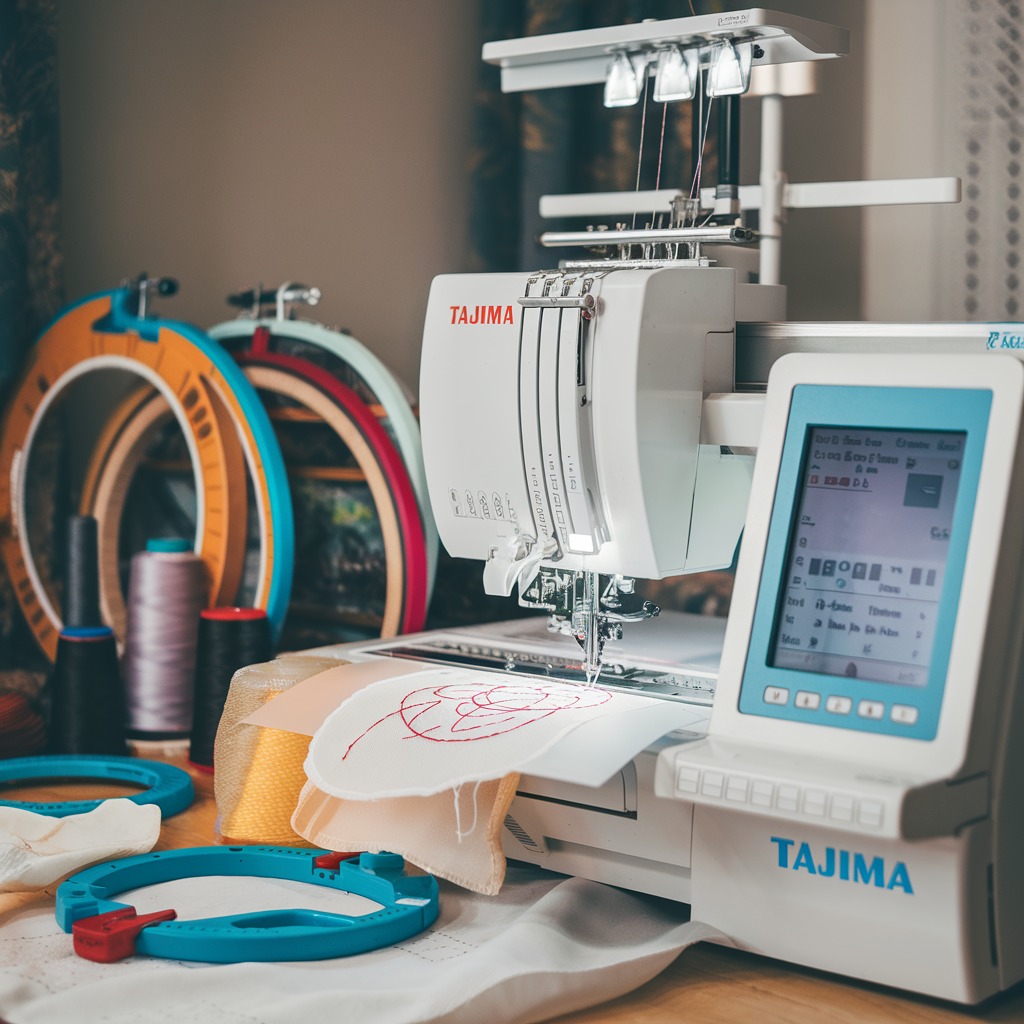
Quick answer: A Tajima embroidery machine freezing or slowing down is often caused by overloaded memory, an unstable power supply, software glitches, excessive dust, incorrect thread tension, or mechanical wear. Address these by optimizing designs, ensuring stable power, updating software, thorough cleaning, adjusting tension, and inspecting for worn parts.
A Tajima embroidery machine that freezes or slows down can severely impact production. This guide provides practical, step-by-step troubleshooting for common causes, empowering operators to diagnose and resolve issues efficiently. From routine maintenance to identifying component failures, understanding these problems is key to maintaining optimal machine performance.
Two-minute checks before you open anything
- Check the machine's display for any error codes or messages.
- Verify the power cable is securely plugged into both the machine and a stable wall outlet.
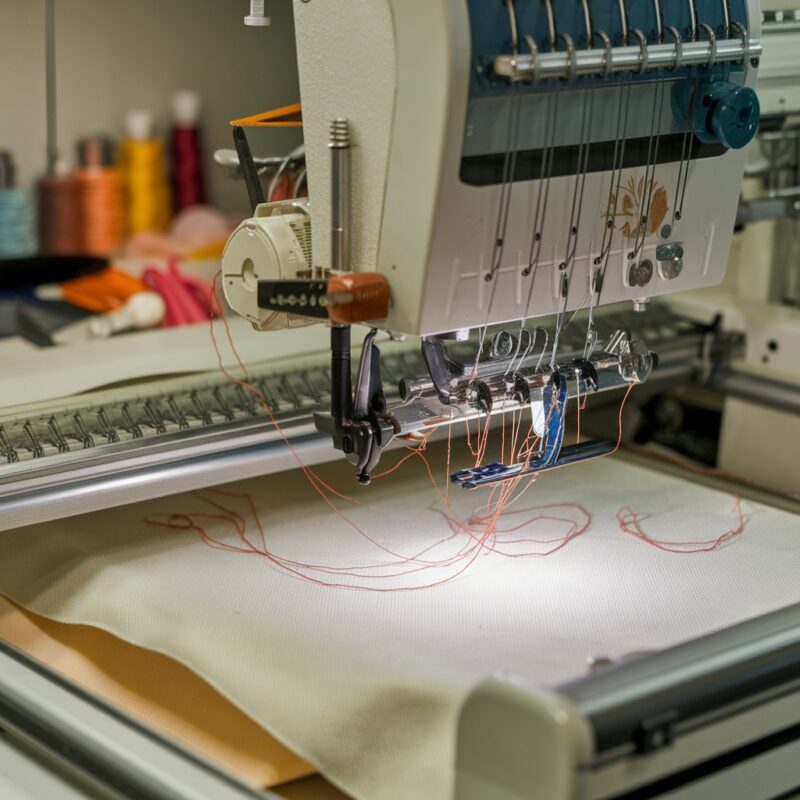
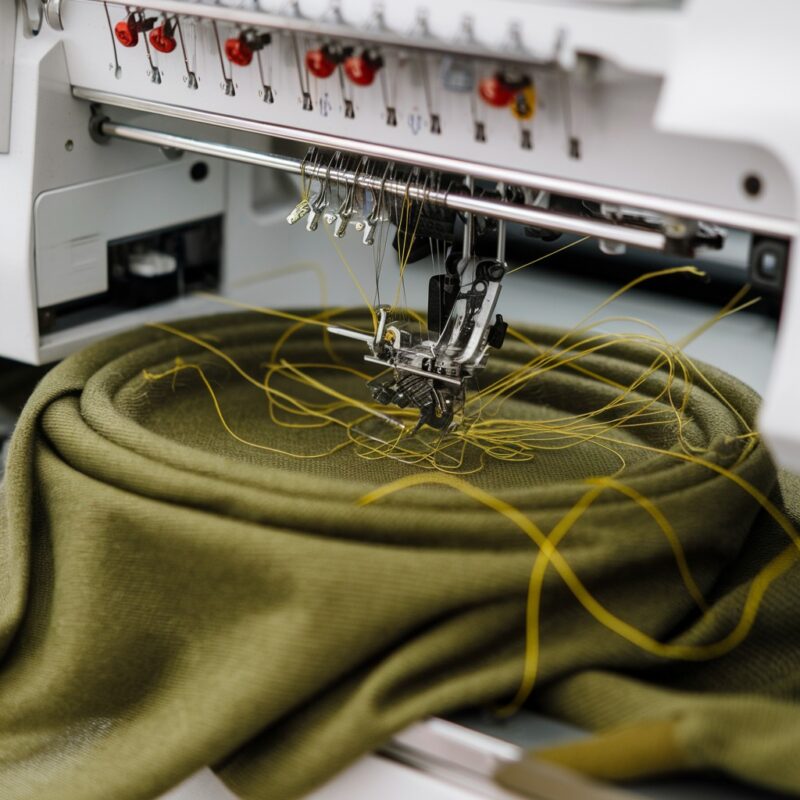
- Inspect the needle area, bobbin case, and thread path for visible lint or thread jams.
- Confirm that the current design file is not excessively large or complex for the machine's memory.
- Listen for any unusual noises (grinding, squealing) coming from the machine during operation.
1. Excessive Dust or Debris Accumulation high likelihood
How to tell
Visible lint, thread bits, or dust in the bobbin area, under the needle plate, or along the thread path. The machine may make grinding noises or struggle to move smoothly, leading to slower operation or freezing.
Fix
- Power off the machine and unplug it.
- Open the bobbin case area and remove the bobbin and bobbin case. Use a soft brush or compressed air (low pressure, held at a distance) to remove all lint and debris from the rotary hook and bobbin case area.
- Remove the needle plate and clean thoroughly underneath it, paying attention to the feed dogs and any moving parts.
- Clean the thread path components, including tension discs, thread guides, and take-up lever, with a soft brush or lint-free cloth.
- Apply a small drop of machine oil to the rotary hook race and other specified lubrication points as directed in your Tajima machine's maintenance manual.
Regular cleaning and lubrication are crucial for preventing friction and wear caused by debris.
Parts involved: Lubrication & maintenance → Rotary hooks & bobbin cases → Thread path & tension → Head & mechanical parts → Screws, springs & small parts →
2. Improper Thread Tension high likelihood
How to tell
Stitches appear uneven, looped on the top or bottom, or thread breaks frequently. The machine may slow down as it struggles to form consistent stitches, or even freeze if a severe jam occurs.
Fix
- Thread the machine correctly, ensuring the thread passes through all guides and tension discs as per your machine's manual.
- Check the upper thread tension. Adjust the tension knob incrementally (e.g., a quarter turn at a time) according to the type of thread and fabric being used. Refer to your Tajima manual for recommended starting points.
- Check the bobbin tension. This is typically adjusted via a small screw on the bobbin case. Adjust in very small increments. A common test is the 'drop test' where the bobbin case should slowly unspool thread when held by the thread.
- Perform test stitches on a scrap piece of fabric similar to your project material. Adjust tension until stitches are balanced, with no looping on either side.
Correct tension is vital for smooth stitching and preventing undue stress on mechanical components.
Parts involved: Thread path & tension → Rotary hooks & bobbin cases → Needles & needle bars → Threads & supplies →
Parts you may need for Tajima
In stock, tested before dispatch, Buyer Protection on every order. Part types for this problem: Rotary hooks & bobbin cases, Needles & needle bars, Thread path & tension, Presser feet & sewing parts.
 40 Weight 120D/2 Polyester Embroidery Thread 4000M PET-121 for Brot...$ 17.49View part →
 TAJIMA DU-10 XY Driver Board EH5404000000 MP-117-1-A for TME-HC, TM...$ 140.49View part →
 Groz Beckert RG DBXK5 Embroidery Needles Nm 65/9, 70/10, 75/11, 80/...$ 36.29View part →
 Hirose HSH-7.94ATR(MTQ) KHS12-RYP Rotary Hook for Tajima, Barudan, ...$ 18.09View part →
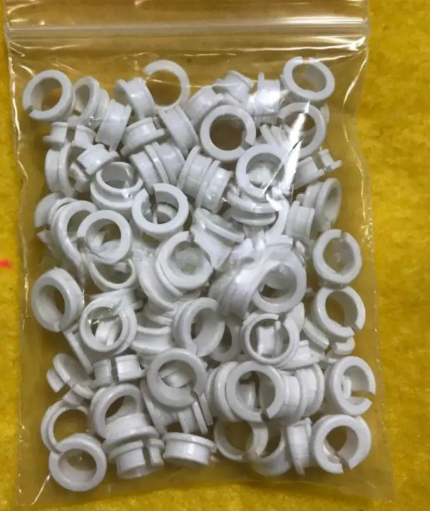 Tajima EF0613220000 EF0613210000 090460040020 090460040031 Presser ...$ 18.09View part →
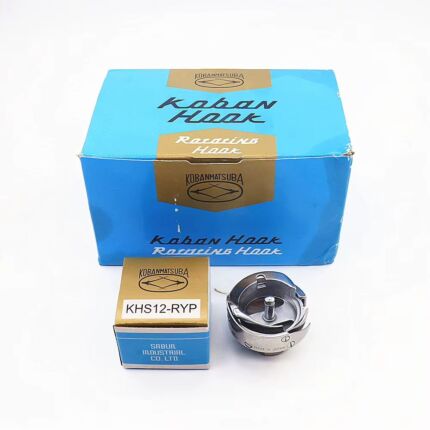 Koban KHS12-RYP Rotary Hook with Trimmer for Tajima, Barudan, SWF, ...$ 33.49View part →
All Tajima parts → Rotary Hooks & Bobbin Cases → Needles & Needle Bars → Thread Path & Tension →
3. Overloaded Machine Memory or Complex Design Files medium likelihood
How to tell
The machine slows down significantly or freezes when loading a design, during specific complex sections of a design, or when multiple large designs are stored in memory. Error messages related to memory capacity may appear.
Fix
- Review the design file. If it has an extremely high stitch count or excessive detail, use design software to optimize it. Simplify complex areas or reduce unnecessary stitches.
- For very large designs, consider splitting them into smaller, manageable sections to be embroidered sequentially.
- Access the machine's file management system (via the control panel) and delete any unused or old design files to free up internal memory.
- If using a USB drive, ensure it's not full and that the design file is the only one being accessed.
The machine's internal memory and USB interface are key to design handling.
Parts involved: Floppy, USB & memory → Control panels & displays →
4. Inadequate or Unstable Power Supply medium likelihood
How to tell
Machine performance is inconsistent, randomly slows down, or freezes without a clear pattern. Other electrical devices on the same circuit might also show instability. The machine may reset unexpectedly.
Fix
- Ensure the machine is plugged directly into a dedicated wall outlet. Avoid using extension cords or power strips, as they can cause voltage drops or interference.
- Verify the wall outlet provides the correct voltage and amperage as specified in your Tajima machine's manual.
- If using a surge protector, ensure it is rated for the machine's power requirements and is in good working condition. Consider replacing old or low-quality surge protectors.
- If the issue persists, try plugging the machine into a different circuit or outlet to rule out a building wiring problem.
The power input board and internal wiring are directly affected by power quality.
Parts involved: Cables & wiring → Circuit boards & electronics →
5. Software Glitches or Outdated Firmware medium likelihood
How to tell
Erratic behavior, specific functions failing, unexpected freezing, or error messages that don't correspond to a mechanical issue. This can occur after a power fluctuation or if an update was interrupted.
Fix
- Check the Tajima manufacturer's website for the latest firmware updates for your specific machine model. Download and install them according to the provided instructions, typically via USB.
- Perform a machine reset. Refer to your Tajima manual for the correct procedure, as this can vary by model. A reset often clears temporary software issues.
- If the problem started after a recent update, consider reinstalling the firmware. If no updates are available, contact Tajima support for potential diagnostic tools or a factory reset procedure.
The main control board and display panel manage the machine's software and firmware.
Parts involved: Circuit boards & electronics → Control panels & displays → Floppy, USB & memory →
6. Worn or Damaged Mechanical Components low likelihood
How to tell
Unusual grinding, squealing, or knocking noises. Visible wear on gears, belts, or shafts. Increased friction or resistance when moving parts manually (with power off). Stitches may be inconsistent or machine may struggle to move.
Fix
- Power off and unplug the machine. Carefully inspect visible gears, belts, and pulleys for signs of wear, cracks, or misalignment.
- Check the needle bar drive mechanism and rotary hook for any play or looseness beyond normal tolerances. Refer to your manual for acceptable clearances.
- Manually rotate the handwheel (if applicable) to feel for any binding or excessive resistance in the machine's movement.
- If any significant wear or damage is found, the affected parts will need to be replaced. Consult your machine's parts manual for correct part identification and replacement procedures. This often requires a technician.
Gears, belts, shafts, and bearings are critical for smooth mechanical operation. Worn parts increase friction and strain on motors.
Parts involved: Belts, pulleys & gears → Shafts, bearings & bushings → Head & mechanical parts → Motors & drivers → Screws, springs & small parts →
7. Network Connectivity Issues low likelihood
How to tell
Machine slows down or freezes specifically when attempting to load designs from a networked computer or when communication with network software is active. Error messages related to network connection or file transfer may appear.
Fix
- Verify the network cable is securely connected to both the machine and the network switch/router.
- Check the network settings on the machine's control panel to ensure it has a valid IP address and is correctly configured for your network.
- Test the network connection by attempting to transfer a small file. If issues persist, try a different network cable or port on the switch.
- If possible, try connecting the machine directly to the computer via a USB cable (if supported) to bypass network issues and confirm the machine itself is functional.
The network interface card (part of the circuit board) and associated cabling are directly involved.
Parts involved: Cables & wiring → Circuit boards & electronics → Control panels & displays →
Stop and call a technician if
- If the machine exhibits persistent grinding, knocking, or other severe unusual noises.
- If you suspect a motor or driver failure.
- If the control panel is unresponsive or displaying critical system errors that cannot be resolved by a reset.
- If internal mechanical components (gears, shafts, bearings) are visibly worn or damaged and require complex replacement.
- If software reinstallation or firmware updates fail to resolve issues, indicating a potential main board problem.
Prevent it coming back
- Perform daily cleaning of the bobbin area, needle plate, and thread path to prevent lint and debris buildup.
- Regularly check and adjust thread tension (upper and bobbin) to ensure balanced stitches and reduce strain on the machine.
- Optimize design files by reducing unnecessary stitches or splitting very large designs into smaller sections to manage machine memory.
- Ensure the machine is connected to a stable, dedicated power source, avoiding extension cords or overloaded circuits.
- Keep the machine's firmware and software updated to the latest versions available from Tajima.
- Inspect visible mechanical components (belts, gears) periodically for signs of wear or damage.
- Use high-quality threads and needles appropriate for your fabric and machine settings.
Frequently asked questions
Why does my Tajima machine only freeze on large designs?
This often indicates an overloaded machine memory or a design file that is too complex. Try optimizing the design by reducing stitch count or splitting it into smaller sections. Ensure you have deleted unnecessary files from the machine's internal memory.
Can a bad power outlet cause my machine to slow down?
Yes, an unstable or insufficient power supply from a faulty outlet or an overloaded circuit can cause erratic behavior, including slowing down or freezing. Always plug your machine directly into a stable, dedicated wall outlet.
How often should I clean my Tajima embroidery machine?
For optimal performance, it's recommended to clean your Tajima machine daily or after every 8-10 hours of operation, especially the bobbin case and needle plate areas. Regular cleaning prevents lint and debris buildup that can cause slowdowns and mechanical issues.
What should I do if my machine freezes mid-stitch?
First, power off the machine immediately. Inspect the needle, thread path, and bobbin area for any jams or obstructions. Clear any debris, re-thread the machine, and then power it back on. If it continues, check for software glitches or mechanical issues.
Where can I find the correct tension settings for my Tajima machine?
The correct tension settings are specific to your Tajima model, thread type, and fabric. Always refer to your machine's user manual for recommended starting points and instructions on how to adjust both upper and bobbin tension.
Did this guide fix your machine?
Rate it - it helps other operators find the right fix.
Not sure which part is failing?
Need the logo stitched too?
Get your logo digitized by the people who know this machine
Upload the artwork, see the stitch count and the exact price in 10 seconds, then order with a free sew-out preview. $1 per 1,000 stitches, $10 minimum, 24-hour delivery. Vector conversion from $12.
After the fix
Fixed it? Keep the rest of the shop moving.
OS 360 is the shop software from the team behind this parts store. Every job keeps its status, deadline and owner while a Tajima head is down, restock alerts fire for needles, hooks and bobbins before you run dry, and quotes, invoices and payment live in one place.
- Jobs with status, deadline and owner - nothing slips during downtime
- Inventory with restock alerts, this store one click away
- Instant quotes, invoices and one place to collect payment