Blog
Singer Futura XL-420: Machine Freezing or Slowing Down Troubleshooting Guide

Quick answer: Most freezing or slowing issues on the Singer Futura XL-420 can be resolved by performing a thorough machine cleaning, ensuring proper computer and software setup, and checking the USB connection. Start by cleaning the bobbin area and restarting both your machine and computer.
The Singer Futura XL-420 is a capable embroidery machine, but like any complex device, it can occasionally encounter issues like freezing or slowing down. These problems can disrupt your workflow and impact embroidery quality. This guide provides practical, step-by-step troubleshooting advice from a technician's perspective to help you diagnose and resolve common causes, getting your machine back to optimal performance.
Two-minute checks before you open anything
- Turn off and unplug the machine, then restart your computer and the embroidery machine.
- Inspect the USB cable for damage and ensure it's securely connected to both the machine and a direct USB port on your computer (avoid hubs).
- Open the bobbin case area and visually check for any lint, dust, or thread snags.
- Verify that the embroidery hoop is correctly installed and secured, and the fabric is taut.
- Check the machine's display for any error messages.
1. Insufficient Machine Maintenance (Dust/Lint Buildup) high likelihood
How to tell
Machine slows down, struggles to stitch, or freezes, especially during extended use. Visible lint, dust, or thread snippets are present in the bobbin area, feed dogs, or thread path.
Fix
- Turn off and unplug the machine.
- Remove the needle plate, bobbin case, and bobbin.
- Using a small brush and/or compressed air, carefully remove all lint, dust, and thread snippets from the bobbin area, feed dogs, and thread path. Pay close attention to the rotary hook area.
- Clean the upper thread tension discs with a lint-free cloth or a piece of dental floss to remove trapped lint.
- Reassemble the machine and test operation.
Regular cleaning prevents wear on mechanical parts and ensures smooth thread movement and consistent stitch quality.
Parts involved: Lubrication & maintenance → Rotary hooks & bobbin cases → Thread path & tension → Head & mechanical parts →
2. Poor USB Connection high likelihood
How to tell
Machine intermittently stops, freezes, or fails to respond to computer commands. Data transfer errors may occur. The machine might not be recognized by the computer software.
Fix
- Ensure the USB cable is firmly seated at both the machine and the computer.
- Inspect the USB cable for any kinks, cuts, or damage. Replace if damaged.
- Always use the original Singer USB cable if available, as third-party cables may not provide stable data transfer.
- Connect the USB cable directly to a USB port on your computer. Avoid using USB hubs, extension cables, or front-panel USB ports if possible, as these can introduce instability.
- Try a different USB port on your computer.
A stable USB connection is critical for reliable communication between the machine and your computer.
Parts involved: Cables & wiring →
Parts you may need for Singer
In stock, tested before dispatch, Buyer Protection on every order. Part types for this problem: Lubrication & maintenance, Rotary hooks & bobbin cases, Thread path & tension, Head & mechanical parts.
 Bobbin Case & 2 Metal Bobbins for Brother, Janome, Singer, Babylock...$ 5.59View part →
 11PCS Low Shank Presser Foot Kit Set for Singer Brother Janome Kenm...$ 23.49View part →
 Flying Tiger DBx1 Industrial Lockstitch Needles, 100 pcs/box, Sizes...$ 10.99View part →
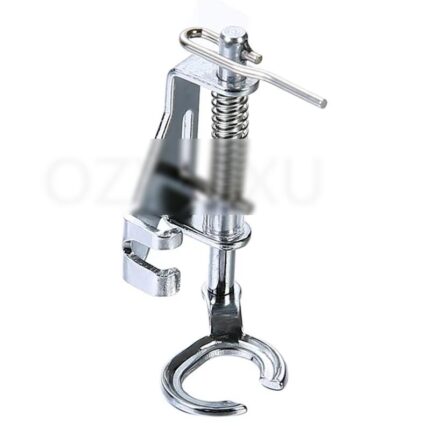 AA7032 Open Toe Quilting & Embroidery Presser Foot for Brother, Jan...$ 5.29View part →
 32-Piece Universal Presser Foot Kit for Brother CS6000i, Singer 442...$ 34.99View part →
 ORGAN HAX1 Household Sewing Machine Needles for SINGER & BROTHER, S...$ 6.29View part →
All Singer parts → Lubrication & Maintenance → Rotary Hooks & Bobbin Cases → Thread Path & Tension →
3. Thread Tension Issues medium likelihood
How to tell
Stitches appear uneven, looped, or broken. The machine may sound strained or struggle to pull thread, leading to slowdowns or freezing. Fabric may pucker or gather.
Fix
- Ensure the machine is threaded correctly, both upper and bobbin threads, with the presser foot raised during upper threading.
- Check that the bobbin is wound evenly and inserted correctly into the bobbin case.
- Verify that the correct bobbin case is being used for embroidery (often a specific one for embroidery).
- Adjust the upper thread tension according to your fabric and thread type. Refer to your machine manual for recommended settings.
- Test the tension on a scrap piece of fabric similar to your project material. Adjust until stitches are balanced on both sides.
- Ensure the thread path is clear and free of snags or obstructions.
Incorrect tension can cause excessive strain on the machine's motor and mechanical components, leading to premature wear.
Parts involved: Thread path & tension → Rotary hooks & bobbin cases → Needles & needle bars →
4. Incorrect Machine Settings (Needle, Density, Hoop) medium likelihood
How to tell
Machine struggles to penetrate fabric, stitches are skipped or broken, or the machine jams. The hoop may shift or not be recognized correctly. Stitch quality is poor.
Fix
- Verify that the correct needle type and size are installed for your fabric and thread. A sharp, appropriately sized needle is crucial.
- Ensure the needle is inserted correctly, fully seated, and facing the right direction.
- Check that the embroidery hoop is properly secured to the machine's carriage and that the fabric is taut within the hoop, without being over-tightened.
- Review your design's stitch density. If it's too high for the fabric or design, reduce it in your software.
- Confirm that the presser foot is appropriate for embroidery and correctly attached.
Using the wrong needle or an improperly secured hoop can cause significant stress on the machine's internal mechanisms.
Parts involved: Needles & needle bars → Hoops & frames → Presser feet & sewing parts →
5. Software/Firmware Glitches or Outdated Versions medium likelihood
How to tell
Machine freezes or slows down when starting a design, transferring files, or during complex operations. Error messages related to software or communication may appear. Performance issues are often inconsistent.
Fix
- Ensure your Singer Futura XL-420 software and machine firmware are updated to the latest versions. Check the official Singer website for updates.
- Restart both your computer and the embroidery machine.
- Close all unnecessary applications on your computer to free up system resources.
- If using a design program, ensure it meets the recommended system requirements for your computer.
Outdated software or firmware can lead to compatibility issues and inefficient processing, affecting machine performance.
Parts involved: Circuit boards & electronics → Floppy, USB & memory →
6. Large or Complex Design Files / Corrupt Design Files medium likelihood
How to tell
Machine slows down significantly or freezes when processing specific, often intricate or large, design files. The issue may not occur with simpler designs. Error messages about file corruption or memory may appear.
Fix
- For very large or complex designs, try to reduce their size or break them into smaller sections to be embroidered in stages.
- Verify the design file format (.PES, .DST, etc.) is compatible with your Singer Futura XL-420.
- If possible, re-download the design file from a reliable source.
- Avoid using design files from unverified sources, as they may be corrupted or improperly formatted.
- Test the design on a scrap piece of fabric before committing to your main project.
Corrupt or overly complex design files can overload the machine's processor, leading to slowdowns or crashes.
Parts involved: Floppy, USB & memory →
7. Low Computer Memory or Performance Issues medium likelihood
How to tell
The computer running the embroidery software is slow, unresponsive, or crashes. The embroidery machine's performance mirrors the computer's struggles, especially when loading or processing designs.
Fix
- Close all unnecessary applications running on your computer to free up RAM and CPU resources.
- Clear temporary files and perform regular disk maintenance on your computer.
- Ensure your computer meets or exceeds the minimum system requirements for the Singer Futura XL-420 software.
- Consider upgrading your computer's RAM or storage if performance issues persist and are consistently linked to computer resources.
The Futura XL-420 relies heavily on the connected computer's performance for smooth operation.
Parts involved: Floppy, USB & memory →
8. Overheating low likelihood
How to tell
The machine feels warm to the touch, especially after prolonged use. Performance degrades gradually, leading to slowdowns or temporary freezes, often resolving after a cool-down period.
Fix
- If the machine feels hot, turn it off immediately and allow it to cool down for at least 15-30 minutes.
- Ensure the machine is in a well-ventilated area, away from direct sunlight or heat sources.
- Avoid continuous, prolonged operation without breaks, especially with complex designs.
Overheating can damage sensitive electronic components and motor windings. Allowing the machine to cool prevents permanent damage.
Parts involved: Motors & drivers → Circuit boards & electronics →
9. Improper Lubrication low likelihood
How to tell
Machine sounds louder or more strained than usual. Moving parts feel stiff or sluggish. Performance degrades over time, leading to slowdowns or freezing.
Fix
- Consult your Singer Futura XL-420 user manual for specific lubrication points and recommended oil type.
- Only use high-quality sewing machine oil (e.g., Singer brand or 100% silicone oil). Do not use WD-40 or other general lubricants.
- Apply a small drop of oil to specified moving parts, such as the needle bar, presser bar, and rotary hook race, as indicated in the manual.
- Wipe away any excess oil to prevent staining fabric.
Lack of lubrication increases friction, causing components to work harder and potentially leading to premature wear or motor strain.
Parts involved: Lubrication & maintenance → Shafts, bearings & bushings → Head & mechanical parts →
10. Electrical Problems or Power Fluctuations low likelihood
How to tell
Machine experiences intermittent freezes, unexpected shutdowns, or erratic behavior. This may coincide with other electrical devices in the area flickering or behaving unusually.
Fix
- Ensure the machine is plugged directly into a wall outlet, not a power strip or extension cord, if possible.
- If power fluctuations are suspected, use a voltage stabilizer or an uninterruptible power supply (UPS) to provide a consistent power source.
- Test the machine in a different outlet or location to rule out localized electrical issues.
Unstable power can damage sensitive electronics and cause erratic machine behavior.
Parts involved: Circuit boards & electronics → Cables & wiring →
Stop and call a technician if
- If the machine exhibits persistent error codes that cannot be resolved by troubleshooting steps.
- If there is a burning smell, smoke, or unusual grinding noises from the machine.
- If internal mechanical components appear damaged or misaligned.
- If the machine's motor is unresponsive or behaving erratically after all software and basic mechanical checks.
- If the issue persists after performing all recommended troubleshooting steps, indicating a deeper electrical or mechanical fault.
Prevent it coming back
- Perform regular cleaning of the bobbin area, feed dogs, and thread path to prevent lint and dust buildup.
- Keep your Singer Futura XL-420 software and machine firmware updated to the latest versions.
- Use the original Singer USB cable and connect it directly to your computer, avoiding USB hubs.
- Ensure your computer meets the recommended system requirements and has sufficient free memory when operating the embroidery software.
- Break down very large or complex embroidery designs into smaller sections to reduce processing strain.
- Always use the correct needle type and size for your fabric and thread, and ensure proper thread tension.
- Allow the machine to cool down after extended periods of continuous operation.
- Lubricate the machine according to your user manual's schedule and instructions, using only recommended sewing machine oil.
Frequently asked questions
Why does my Singer Futura XL-420 freeze only with certain designs?
This often indicates an issue with the design file itself. It could be too large, too complex, or corrupted. Try simplifying the design, breaking it into smaller sections, or re-downloading it from a trusted source. Ensure your computer has sufficient memory to process the design.
How often should I clean my Singer Futura XL-420?
Regular cleaning is crucial. For frequent users, clean the bobbin area and thread path after every 8-10 hours of use or after every major project. Refer to your machine's manual for specific cleaning recommendations.
Can using a non-Singer USB cable cause problems?
Yes, third-party USB cables, especially those of lower quality or excessive length, can lead to unstable data transmission, causing communication errors, freezing, or slowdowns. It's always best to use the original cable or a high-quality, shielded replacement.
My machine is slowing down, but there are no error messages. What should I check first?
Start with basic maintenance: clean the bobbin area thoroughly, check thread tension, and ensure the correct needle is installed. Then, verify your computer's performance and USB connection stability. Many slowdowns are due to mechanical friction or communication issues.
How do I update the firmware on my Singer Futura XL-420?
Firmware updates are typically downloaded from the official Singer website and installed via the machine's USB connection, often through the Futura software. Always follow the specific instructions provided by Singer to avoid damaging the machine's electronics.
Did this guide fix your machine?
Rate it - it helps other operators find the right fix.
Not sure which part is failing?
Need the logo stitched too?
Get your logo digitized by the people who know this machine
Upload the artwork, see the stitch count and the exact price in 10 seconds, then order with a free sew-out preview. $1 per 1,000 stitches, $10 minimum, 24-hour delivery. Vector conversion from $12.
After the fix
Fixed it? Keep the rest of the shop moving.
OS 360 is the shop software from the team behind this parts store. Every job keeps its status, deadline and owner while a Futura XL-420 head is down, restock alerts fire for needles, hooks and bobbins before you run dry, and quotes, invoices and payment live in one place.
- Jobs with status, deadline and owner - nothing slips during downtime
- Inventory with restock alerts, this store one click away
- Instant quotes, invoices and one place to collect payment