Blog
Hikone Embroidery Machine: Troubleshooting Embroidery Unit Not Recognized

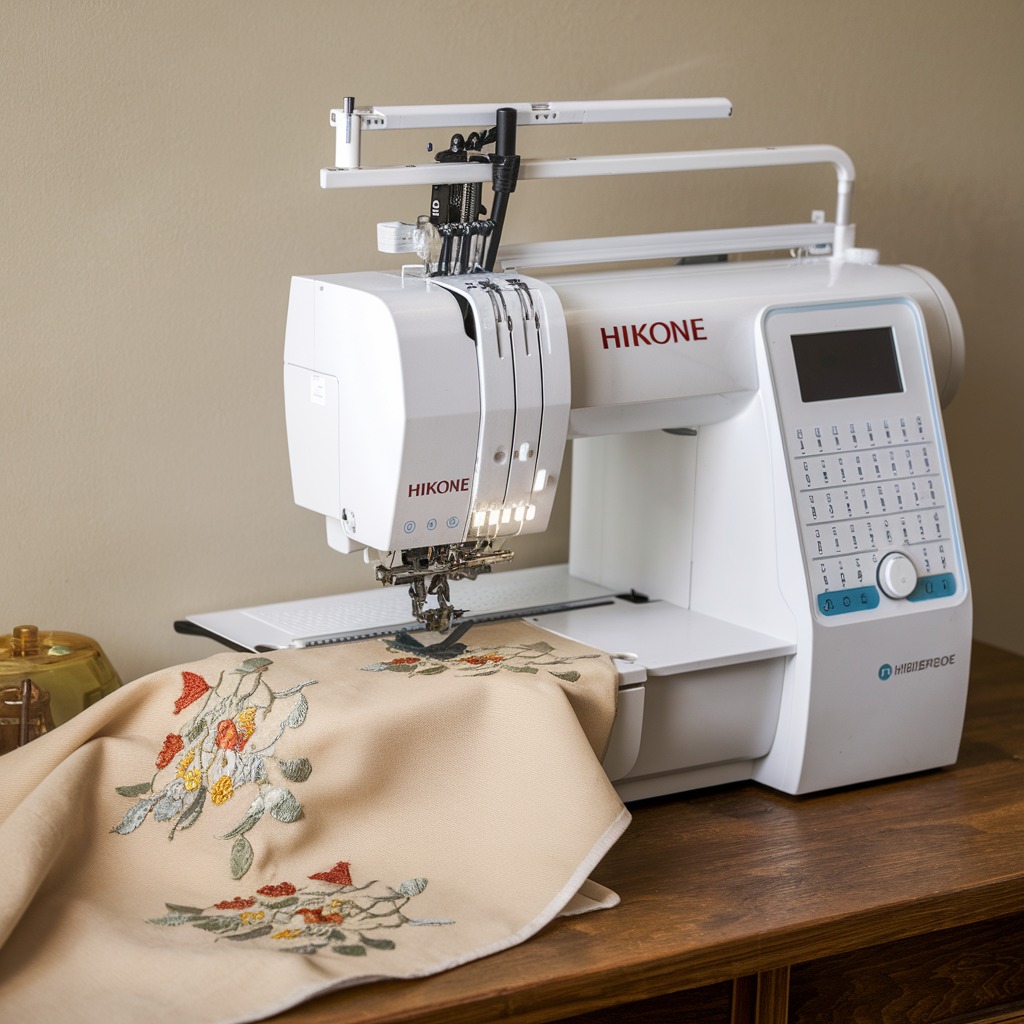
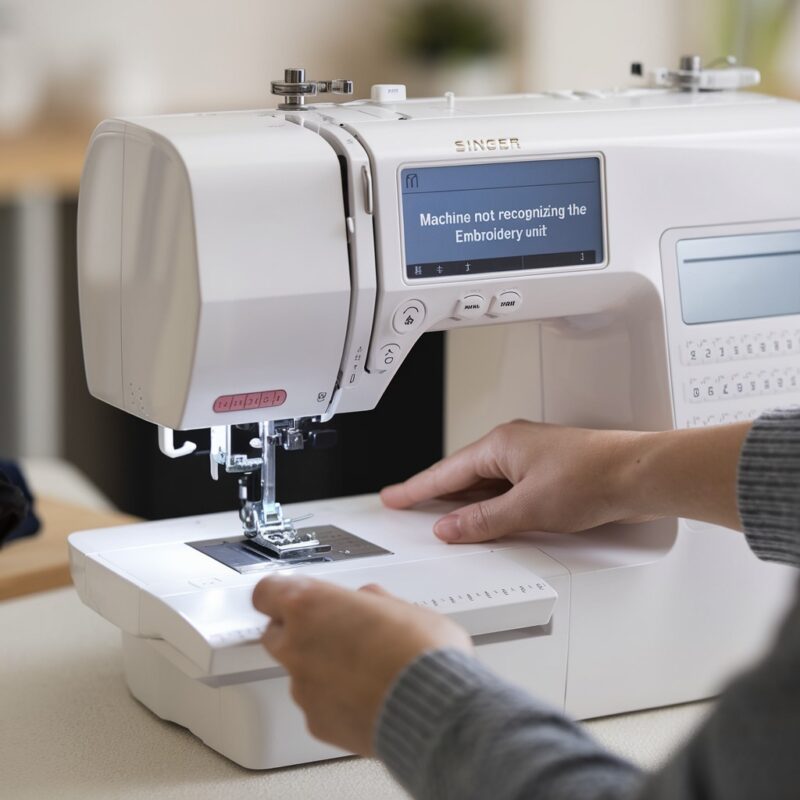
Quick answer: When your Hikone embroidery machine doesn't recognize the embroidery unit, first check all physical connections, clean the ports, and restart the machine. If the issue persists, inspect cables for damage, update software, or consider a faulty embroidery unit.
When your Hikone embroidery machine fails to detect its embroidery unit, it can bring production to a halt. This guide provides a systematic approach to diagnose and resolve common recognition issues, focusing on practical steps you can take at the machine.
Two-minute checks before you open anything
- Is the embroidery unit securely plugged into the machine?
- Are there any visible signs of damage to the connection cable or ports?
- Have you tried restarting the machine and the embroidery unit?
- Is the machine's software and firmware up to date?
1. Loose or Dirty Connection high likelihood
How to tell
The embroidery unit is not detected at all, or connection is intermittent. Visually inspect the connection point between the embroidery unit and the main machine. Look for any gaps where the connector isn't fully seated, or for visible dust, lint, or debris inside the port or on the cable connector pins.
Fix
- Power off the embroidery machine and the embroidery unit.
- Carefully disconnect the embroidery unit cable from both the unit and the main machine.
- Inspect the connector pins on the cable and inside the ports on both the machine and the unit. Use a flashlight if necessary.
- If dirt or lint is present, use a can of compressed air to blow out the ports and gently clean the cable connector pins with a soft, dry brush or lint-free cloth. Avoid using liquids.
- Firmly re-seat the cable into both the embroidery unit and the main machine until you feel a positive click or resistance, ensuring it is fully inserted.
- Power on the embroidery unit, then power on the embroidery machine and check for recognition.
No specific parts are typically needed for cleaning, but ensuring proper connection is key.
Parts involved: Cables & wiring →
2. Damaged Connection Cable or Ports medium likelihood
How to tell
Even after cleaning and re-seating, the unit is not recognized. Visually inspect the entire length of the connection cable for kinks, cuts, fraying, or exposed wires. Check the physical integrity of the ports on both the machine and the embroidery unit for bent pins, cracks, or loose housing.
Fix
- Power off the embroidery machine and the embroidery unit.
- Carefully disconnect the existing cable.
- If you have a known good spare cable, connect it between the embroidery unit and the main machine.
- Power on the embroidery unit, then power on the embroidery machine and check if the unit is now recognized.
- If the issue is resolved with a new cable, replace the old cable permanently. If the ports appear damaged (e.g., bent pins, loose housing), this may require professional service as port replacement can involve soldering or board replacement.
A replacement connection cable may be required. If ports are damaged, it might indicate a fault on the main control board or the embroidery unit's interface board.
Parts involved: Cables & wiring → Circuit boards & electronics →
Parts you may need for your machine
In stock, tested before dispatch, Buyer Protection on every order. Part types for this problem: Cables & wiring, Circuit boards & electronics, Control panels & displays, Floppy, USB & memory.
 360 Digitizing Shop SMT Soldering Practice Board Kit - LED Electron...$ 6.09View part →
 LCTC HDR-15 HDR-30 HDR-60 HDR-100 HDR-150 DIN Rail Switching Power ...$ 16.49View part →
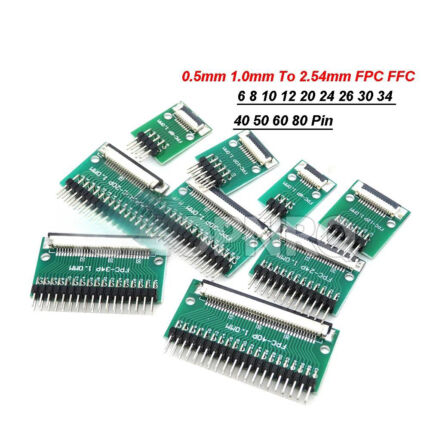 FPC FFC Adapter Board 0.5mm 1.0mm Pitch 6 8 10 12 20 24 26 30 34 40...$ 6.09View part →
 ChgImposs Nema 17 Stepper Motor 42HS48 EPC_STM_102 for CNC 3D Print...$ 24.09View part →
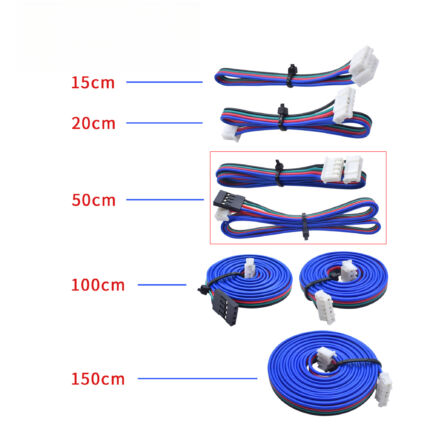 Stepper Motor Cables XH2.54 | 4-Pin to 6-Pin | Embroidery Machine P...$ 4.29View part →
 Due R3 AT91SAM3X8E ATMEGA16U2 ARM Development Board Voltage Regulat...$ 35.49View part →
All your machine parts → Cables & Wiring → Circuit Boards & Electronics → Control Panels & Displays →
3. Outdated or Corrupted Software/Firmware medium likelihood
How to tell
The machine was working previously, but stopped recognizing the unit after a power surge, an incomplete update, or without any clear physical cause. The machine's control panel might display a generic communication error or simply not list the embroidery unit as an available option.
Fix
- Consult your Hikone machine's operator manual to identify the current software/firmware version and the procedure for updating.
- Visit the official Hikone support website (or your authorized dealer's site) to download the latest software and firmware updates for your specific machine model.
- Follow the manufacturer's instructions precisely for installing the updates. This usually involves transferring files via USB or a direct connection.
- After a successful update and machine restart, check if the embroidery unit is recognized.
No physical parts are typically replaced, but a USB drive might be needed for transferring update files.
Parts involved: Control panels & displays → Floppy, USB & memory →
4. Incorrect Machine Settings low likelihood
How to tell
The machine might be in a mode that disables embroidery functions, or a setting related to external unit detection has been inadvertently changed. This is more likely if the machine was recently used for a different function or if settings were manually adjusted.
Fix
- Access the machine's control panel menu.
- Navigate to the 'Settings', 'System', or 'Configuration' menu (refer to your manual for exact menu paths).
- Look for options related to 'Embroidery Unit', 'External Device', or 'Mode Selection'. Ensure the machine is set to 'Embroidery Mode' or that the embroidery unit is enabled.
- If unsure, consult your machine's manual for instructions on how to reset the machine to its factory default settings. Perform a reset if necessary, then reconfigure essential settings.
- Restart the machine after adjusting settings and check for unit recognition.
No parts are replaced; this involves software configuration via the control panel.
Parts involved: Control panels & displays →
5. Faulty Embroidery Unit low likelihood
How to tell
All other troubleshooting steps (connections, cables, software, settings) have been exhausted, and the unit is still not recognized. There might be internal damage or a component failure within the embroidery unit itself. This could manifest as the unit not powering on, making unusual noises, or showing error codes on its own display (if equipped).
Fix
- Visually inspect the embroidery unit for any external signs of damage, such as cracks, loose components, or burnt smells.
- If possible, try connecting the embroidery unit to another compatible Hikone machine (if available) to rule out the main machine as the source of the problem. If it's not recognized on another machine either, the unit is likely faulty.
- Due to the complexity of internal components, repair of a faulty embroidery unit typically requires specialized tools and expertise. Contact a qualified technician for diagnosis and repair or consider unit replacement.
Diagnosis of internal unit faults is complex. Potential parts could include internal control boards, sensors, or motors within the unit.
Parts involved: Circuit boards & electronics → Motors & drivers → Sensors & switches →
Stop and call a technician if
- If you suspect internal damage to the embroidery unit itself.
- If ports on the main machine or embroidery unit are physically damaged (e.g., bent pins, loose housing) and require soldering or board replacement.
- If all troubleshooting steps have been followed and the issue persists.
- If you are uncomfortable performing any of the diagnostic or repair steps.
Prevent it coming back
- Regularly inspect and clean connection ports and cables to prevent dust and lint buildup.
- Always handle the embroidery unit and its connection cable with care to avoid physical damage.
- Keep your machine's software and firmware updated to ensure optimal compatibility and performance.
- Ensure the machine is powered off before connecting or disconnecting the embroidery unit to prevent electrical damage.
Frequently asked questions
Why is my Hikone machine suddenly not recognizing the embroidery unit?
The most common reasons are a loose or dirty connection cable, a damaged cable, or outdated software. Start by checking and cleaning all connections, then ensure your machine's software is up to date.
Can I use any USB cable to connect my embroidery unit?
No, embroidery machines often use specific proprietary cables or industrial-grade USB cables designed for data integrity and durability. Always use the cable supplied with your machine or a direct replacement specified by the manufacturer.
How often should I update my Hikone machine's software?
It's good practice to check for software and firmware updates periodically, especially if you encounter new issues or if new features are released. However, only update when necessary and always follow the manufacturer's instructions carefully.
What if my embroidery unit has visible damage?
If your embroidery unit has visible damage, such as cracks or bent connectors, it may be the cause of the recognition issue. Depending on the severity, it might require professional repair or replacement. Do not attempt to force connections with damaged parts.
Did this guide fix your machine?
Rate it - it helps other operators find the right fix.
Not sure which part is failing?
Need the logo stitched too?
Get your logo digitized by the people who know this machine
Upload the artwork, see the stitch count and the exact price in 10 seconds, then order with a free sew-out preview. $1 per 1,000 stitches, $10 minimum, 24-hour delivery. Vector conversion from $12.
After the fix
Fixed it? Keep the rest of the shop moving.
OS 360 is the shop software from the team behind this parts store. Every job keeps its status, deadline and owner while a embroidery head is down, restock alerts fire for needles, hooks and bobbins before you run dry, and quotes, invoices and payment live in one place.
- Jobs with status, deadline and owner - nothing slips during downtime
- Inventory with restock alerts, this store one click away
- Instant quotes, invoices and one place to collect payment