
Blog
Brother Embroidery Machine Not Recognizing Embroidery Unit

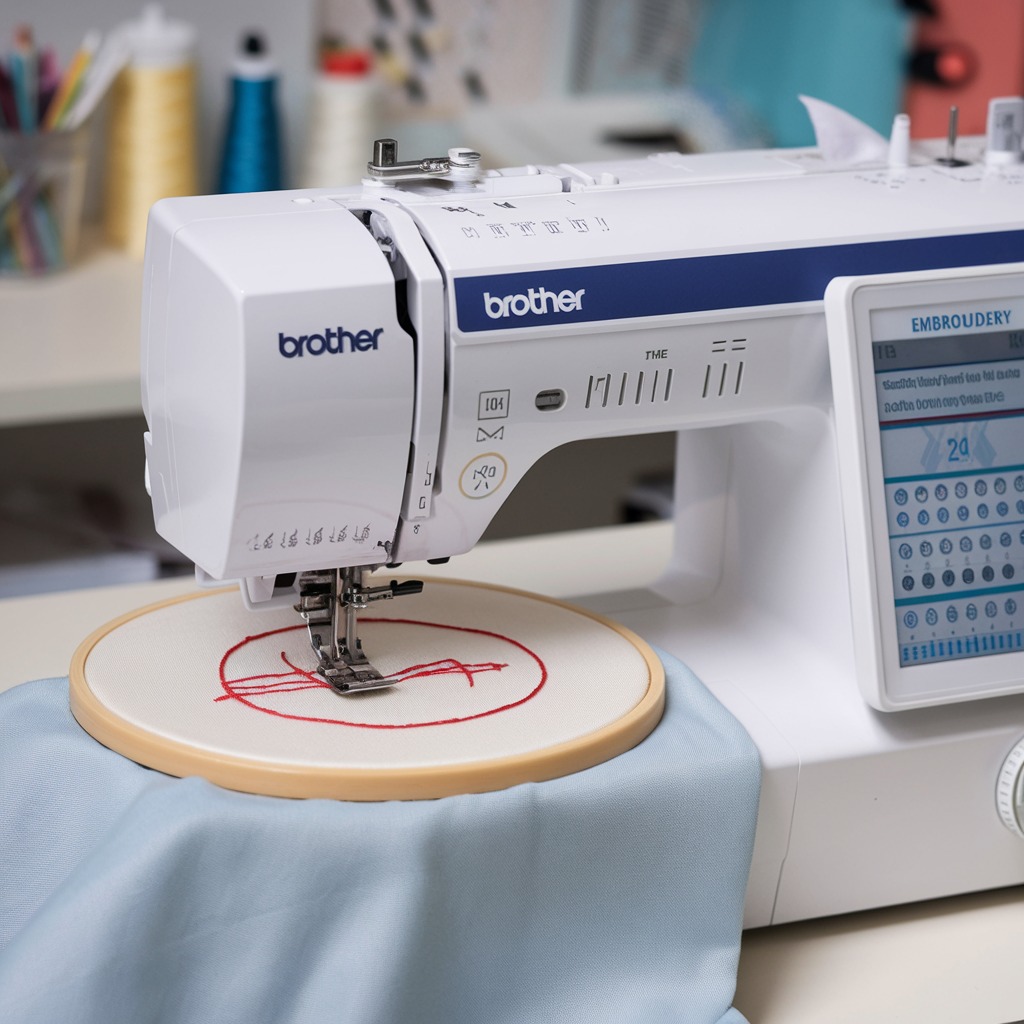
Quick answer: If your Brother embroidery machine isn't recognizing the embroidery unit, first ensure it's securely attached and the machine is powered off before connecting. Clean the unit's and machine's electrical contacts, check for firmware updates, and verify unit compatibility. If issues persist, inspect for physical damage or consult the machine's manual for factory reset procedures.
When your Brother embroidery machine fails to recognize its embroidery unit, it can halt your projects. This guide provides practical, step-by-step solutions to diagnose and fix common causes, ensuring your machine is ready for embroidery.
Two-minute checks before you open anything
- Turn the machine off, then on again.
- Detach and reattach the embroidery unit, ensuring it clicks securely.
- Visually inspect the electrical contacts on both the machine and the embroidery unit for any visible debris.
- Confirm the embroidery unit model is compatible with your specific Brother machine model.
1. Embroidery Unit Not Securely Attached high likelihood
How to tell
The embroidery unit feels loose, does not click firmly into place, or the machine immediately displays an error message indicating the unit is not detected after attachment.
Fix
- Turn off the embroidery machine completely.
- Carefully detach the embroidery unit from the machine.
- Realign the embroidery unit with the machine's mounting points.
- Push the unit firmly until it clicks securely into place. Ensure there is no gap between the unit and the machine body.
- Turn the machine back on and check if the unit is recognized.
2. Dirty or Obstructed Electrical Contacts high likelihood
How to tell
The embroidery unit is securely attached, but the machine still does not recognize it. Visual inspection of the electrical contacts on both the machine and the embroidery unit reveals lint, dust, thread bits, or other foreign material.
Fix
- Turn off and unplug the embroidery machine.
- Carefully detach the embroidery unit.
- Using a soft, lint-free cloth or a small, soft brush (like a clean paintbrush), gently clean the electrical contact pins on the machine's connection port.
- Similarly, clean the corresponding contact pads on the embroidery unit's connector.
- Ensure no debris remains in the connector area.
- Reattach the embroidery unit securely.
- Plug in and turn on the machine to check for recognition.
Parts involved: Cables & wiring →
Parts you may need for Brother
In stock, tested before dispatch, Buyer Protection on every order. Part types for this problem: Cables & wiring, Circuit boards & electronics, Control panels & displays, Floppy, USB & memory.
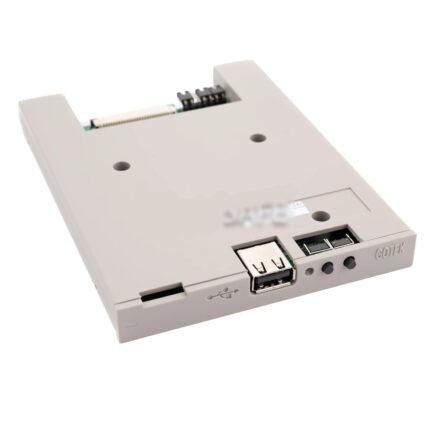 Slim USB Floppy Emulator SFR1M44-DU26-FU 1.44MB/720KB for Brother, ...$ 54.49View part →
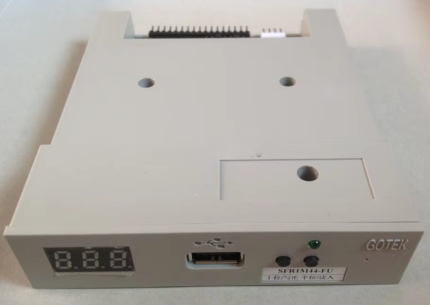 Genuine Gotek SFR1M44-FU Floppy Drive to USB Emulator for Tajima, H...$ 59.29View part →
 Gotek SFR1M44-FU Floppy Drive to USB Emulator for Tajima, Happy, Br...$ 56.49View part →
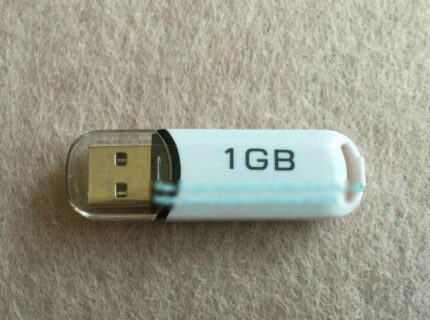 Unbranded 1GB USB Flash Memory for Tajima Barudan SWF Brother Embro...$ 22.49View part →
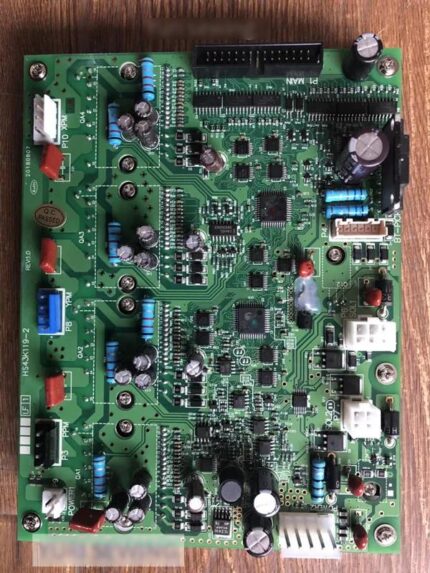 Brother SA3739301 Power Control PCB Board for KE-430D, 311G, 326G, ...$ 120.09View part →
 Brother 7000DD 7100 Main Board PCB Control Box for Industrial Lock ...$ 113.49View part →
All Brother parts → Cables & Wiring → Circuit Boards & Electronics → Control Panels & Displays →
3. Internal Software Glitch medium likelihood
How to tell
The machine was previously working correctly, but suddenly stopped recognizing the unit without any physical changes. A simple power cycle might temporarily resolve it, but the issue could recur.
Fix
- Turn off the machine completely using the main power switch.
- Unplug the machine from the power outlet.
- Wait for at least 30 seconds to allow all internal capacitors to discharge.
- Plug the machine back in and turn it on.
- If the issue persists, consult your Brother machine's user manual for instructions on performing a factory reset. Be aware that a factory reset will erase custom settings and saved designs; back them up if possible before proceeding.
Parts involved: Circuit boards & electronics →
4. Machine Settings Not Configured Properly medium likelihood
How to tell
This often occurs after a firmware update, a hard reset, or if settings were inadvertently changed. The machine might be in a sewing-only mode or have a setting preventing embroidery unit detection.
Fix
- Refer to your Brother machine's user manual to navigate to the machine settings menu.
- Look for options related to 'Embroidery Mode', 'Unit Detection', or 'Accessory Settings'. Ensure the embroidery mode is enabled or set to 'Auto-detect'.
- If specific settings are unclear, follow the manual's instructions to reset machine settings to default configurations. This can often be found under 'Maintenance' or 'System Settings'.
Parts involved: Control panels & displays → Circuit boards & electronics →
5. Outdated Firmware medium likelihood
How to tell
The machine may have recently stopped recognizing the unit, especially if a new unit was purchased or if the machine has not been updated in a long time. The machine might display a generic communication error.
Fix
- Identify your specific Brother machine model number.
- Visit the official Brother support website and navigate to the support section for your model.
- Check for the latest firmware updates available for your machine.
- Download the firmware update file and carefully follow the provided instructions for installation. This usually involves transferring the file via USB to the machine.
- After the firmware update is complete, turn off the machine, reattach the embroidery unit, and restart the machine to check for recognition.
Parts involved: Circuit boards & electronics → Floppy, USB & memory →
6. Embroidery Unit Not Compatible low likelihood
How to tell
This usually happens when a new or replacement embroidery unit is being used for the first time with a specific machine. The machine will consistently fail to recognize the unit despite all other troubleshooting steps.
Fix
- Locate the model number of your Brother embroidery machine and the model number or part number of your embroidery unit.
- Consult your Brother machine's user manual or the official Brother website's compatibility charts.
- Verify that the embroidery unit is specifically designed and listed as compatible with your machine model.
- If incompatible, a different embroidery unit designed for your machine model will be required.
7. Damaged Embroidery Unit low likelihood
How to tell
Visible physical damage to the unit (cracks, bent pins on the connector, loose components) or if the unit was dropped. The machine consistently fails to recognize the unit despite all other troubleshooting.
Fix
- Turn off and unplug the machine.
- Carefully detach the embroidery unit.
- Inspect the embroidery unit thoroughly for any visible signs of damage: cracks in the casing, bent or broken electrical connector pins, loose screws, or rattling sounds when gently shaken.
- If physical damage is evident, the embroidery unit may require professional repair or replacement. Do not attempt to force a damaged unit onto the machine, as this could damage the machine's connector as well.
Parts involved: Circuit boards & electronics → Cables & wiring → Head & mechanical parts →
8. Loose or Damaged Internal Cables/Connections (Machine Side) low likelihood
How to tell
This is less common for operators to diagnose without opening the machine. It might manifest as intermittent recognition, or a complete failure to recognize the unit even after all external checks. Often occurs after machine transport or if the machine has been serviced.
Fix
- This issue typically requires opening the machine's casing, which should only be performed by experienced technicians.
- If you are not comfortable with internal machine repairs, it is recommended to contact a qualified embroidery machine technician.
- A technician would inspect the internal wiring harness connecting the main control board to the embroidery unit port for any loose, disconnected, or damaged cables.
Parts involved: Cables & wiring → Circuit boards & electronics →
Stop and call a technician if
- If you have followed all troubleshooting steps and the embroidery unit is still not recognized.
- If you suspect internal wiring damage and are not comfortable opening the machine.
- If the embroidery unit itself shows signs of internal damage or malfunction.
Prevent it coming back
- Always turn off the machine before attaching or detaching the embroidery unit to prevent electrical issues.
- Keep the machine and embroidery unit connectors clean and free of dust, lint, and thread debris.
- Ensure the embroidery unit is always securely attached to prevent intermittent connection issues.
- Regularly check the Brother support website for firmware updates for your machine model.
- Store the embroidery unit properly when not in use to prevent physical damage to its connectors or casing.
Frequently asked questions
Why does my Brother machine say 'Embroidery Unit Not Detected'?
This message typically means the machine's main board is not receiving a signal from the embroidery unit. Common reasons include the unit not being securely attached, dirty electrical contacts, outdated firmware, or a software glitch. Less commonly, it could be due to an incompatible or damaged unit.
Can I use any embroidery unit with my Brother machine?
No, embroidery units are specific to certain Brother machine models or series. Always check your machine's user manual or Brother's compatibility charts to ensure the embroidery unit you are using is compatible with your specific model.
How do I clean the electrical contacts on my embroidery unit?
Turn off and unplug your machine. Use a soft, lint-free cloth or a small, soft brush to gently wipe the contact pins on the machine's port and the corresponding contact pads on the embroidery unit. Avoid using abrasive materials or liquid cleaners that could leave residue.
Will a firmware update fix my embroidery unit detection problem?
Yes, an outdated firmware can sometimes cause compatibility issues or prevent proper communication with the embroidery unit. Updating your machine's firmware to the latest version from the official Brother website can often resolve such detection problems.
Did this guide fix your machine?
Rate it - it helps other operators find the right fix.
Not sure which part is failing?
Need the logo stitched too?
Get your logo digitized by the people who know this machine
Upload the artwork, see the stitch count and the exact price in 10 seconds, then order with a free sew-out preview. $1 per 1,000 stitches, $10 minimum, 24-hour delivery. Vector conversion from $12.
After the fix
Fixed it? Keep the rest of the shop moving.
OS 360 is the shop software from the team behind this parts store. Every job keeps its status, deadline and owner while a Brother head is down, restock alerts fire for needles, hooks and bobbins before you run dry, and quotes, invoices and payment live in one place.
- Jobs with status, deadline and owner - nothing slips during downtime
- Inventory with restock alerts, this store one click away
- Instant quotes, invoices and one place to collect payment